 Kryptixbrowser
RPA guide
Kryptix RPA repeats what you would do by hand in a browser profile: open pages, click, type, wait and read data. It does this in many profiles at once. You build a flow from steps in the editor, test it on one profile, then run it on as many profiles as you need.
How it works
Runs inside the browser
Every action goes through the browser's own input pipeline. There is no CDP connection, no script injected into the page and no extension, so the page cannot tell it is being automated.
Your mouse and keyboard stay free
RPA never sends clicks or key presses to Windows. You can keep working while flows run; your real cursor does not move.
The cursor stays in its window
The cursor that shows where RPA clicks is drawn only over that profile's own window. When the window is in the background, so is the cursor.
CAPTCHAs are never solved for you
When a CAPTCHA or an unusual-traffic page appears, the flow pauses and tells you. Solve it yourself and press Resume. Kryptix does not try to get past security checks.
Your first flow
Create a flow
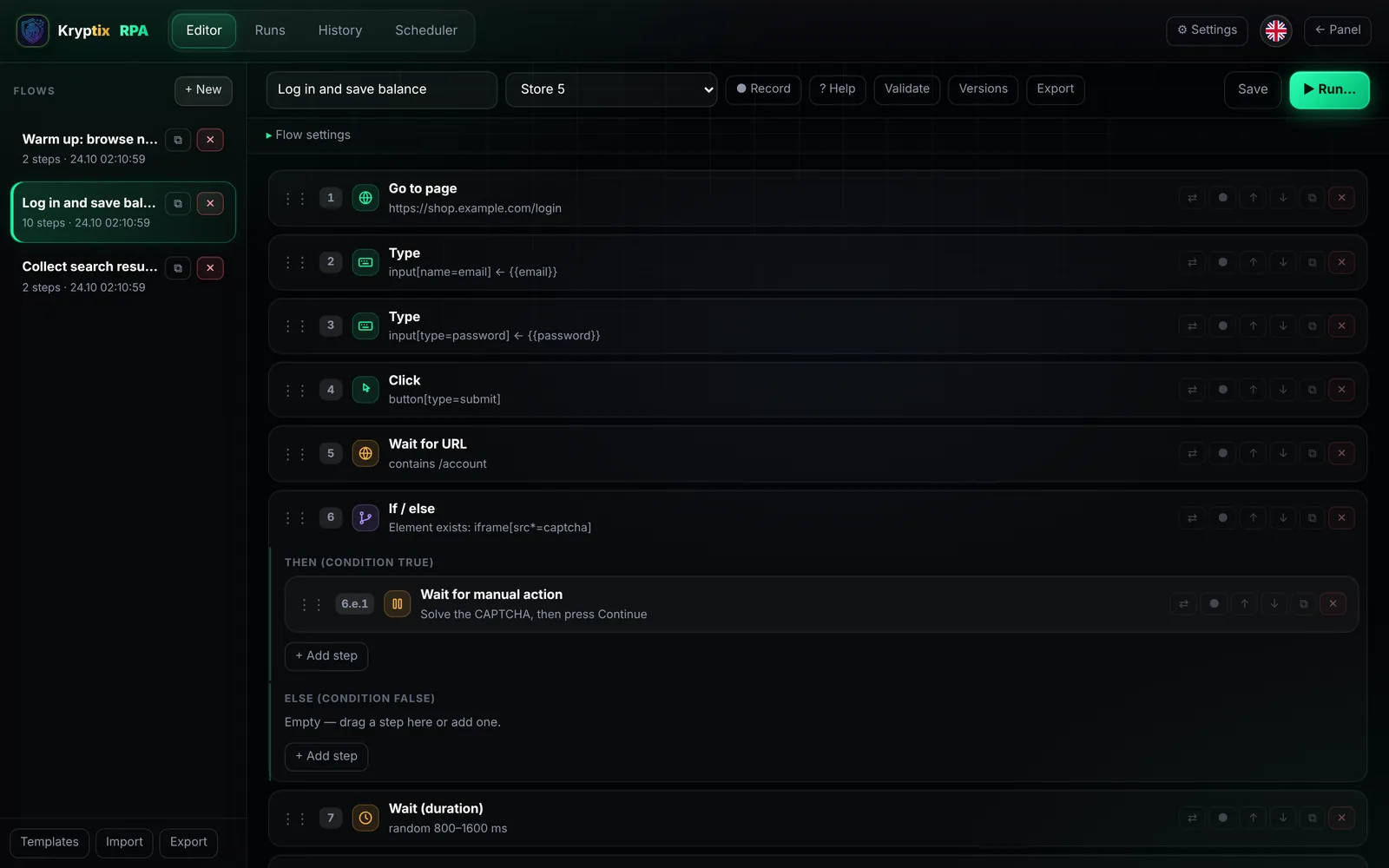
Open RPA from the side bar. Press + New, or start from Templates. Name the flow, then choose a profile in the box next to the name. That profile is used by Pick, Test and Record while you build; it does not limit where the flow runs later.
Add steps
Press + Add step and pick a step type; the search box finds steps by name. Steps run from top to bottom. Drag the ⋮⋮ handle to reorder and use ⧉ to copy a step. If / else and Loop have lanes of their own; add steps inside them the same way.
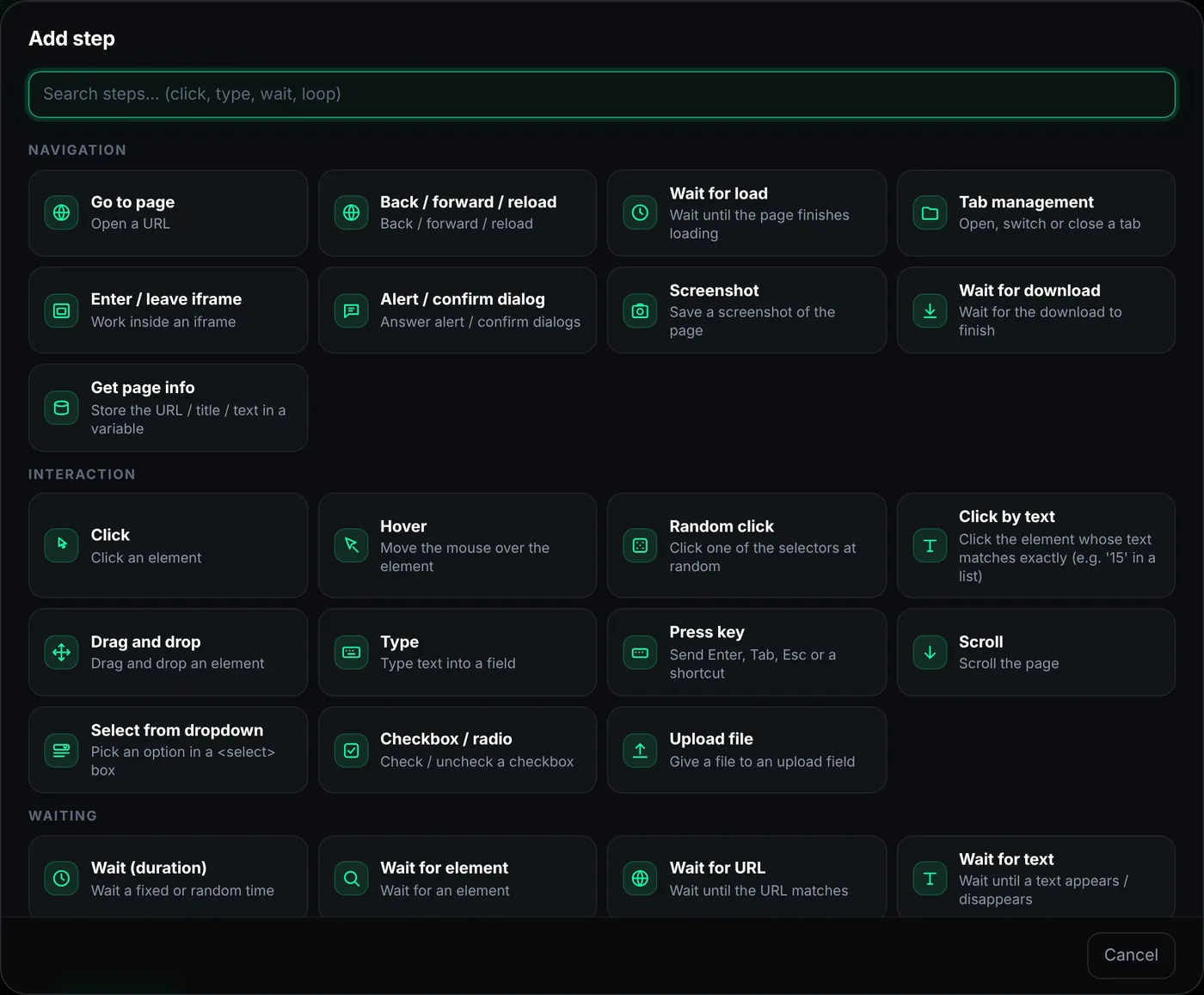
The step picker groups steps by category: Navigation, Interaction, Waiting, Data, Logic and SMS. Point at elements
Steps that act on an element take a selector. Press Pick and click the element in the profile's window; the selector is filled in for you. Smart suggests selectors built on stable attributes (
name,aria-label,data-testid) instead of class names that change. Test shows how many elements match and Highlight outlines the match in the browser. For pages that change often, add a fallback selector or find the element by its visible text.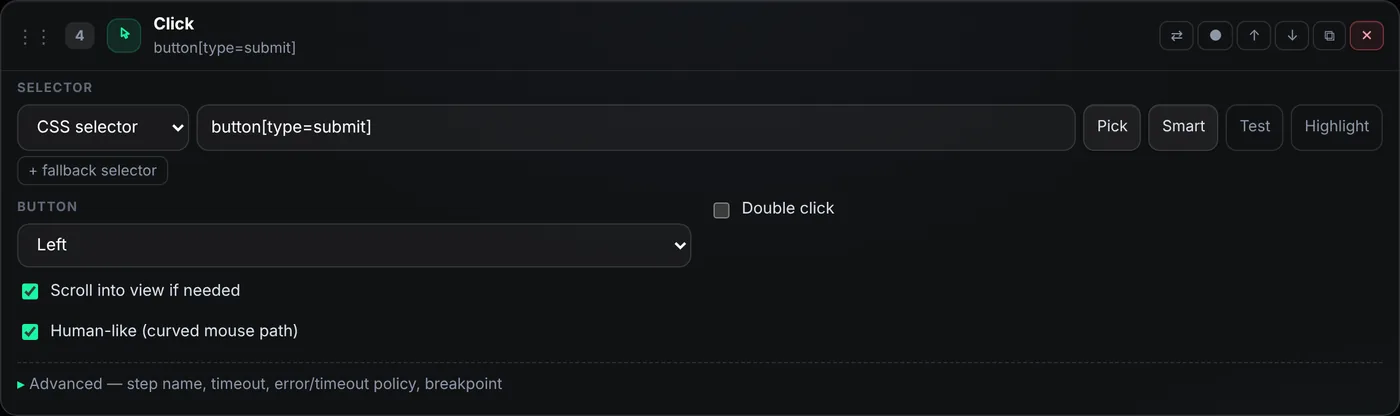
A Click step open for editing. “Scroll into view if needed” first brings elements inside lists and scrollable boxes into view. Run on your profiles
Press ▶ Run…, choose the profiles and set how many run at the same time. Profiles start one after another with a random delay from the start-interval range. Attach a CSV or Excel file to give each profile its own row (for example its own login), and choose whether profiles close at the end. Instant profiles create a fresh profile for every run and delete it afterwards.
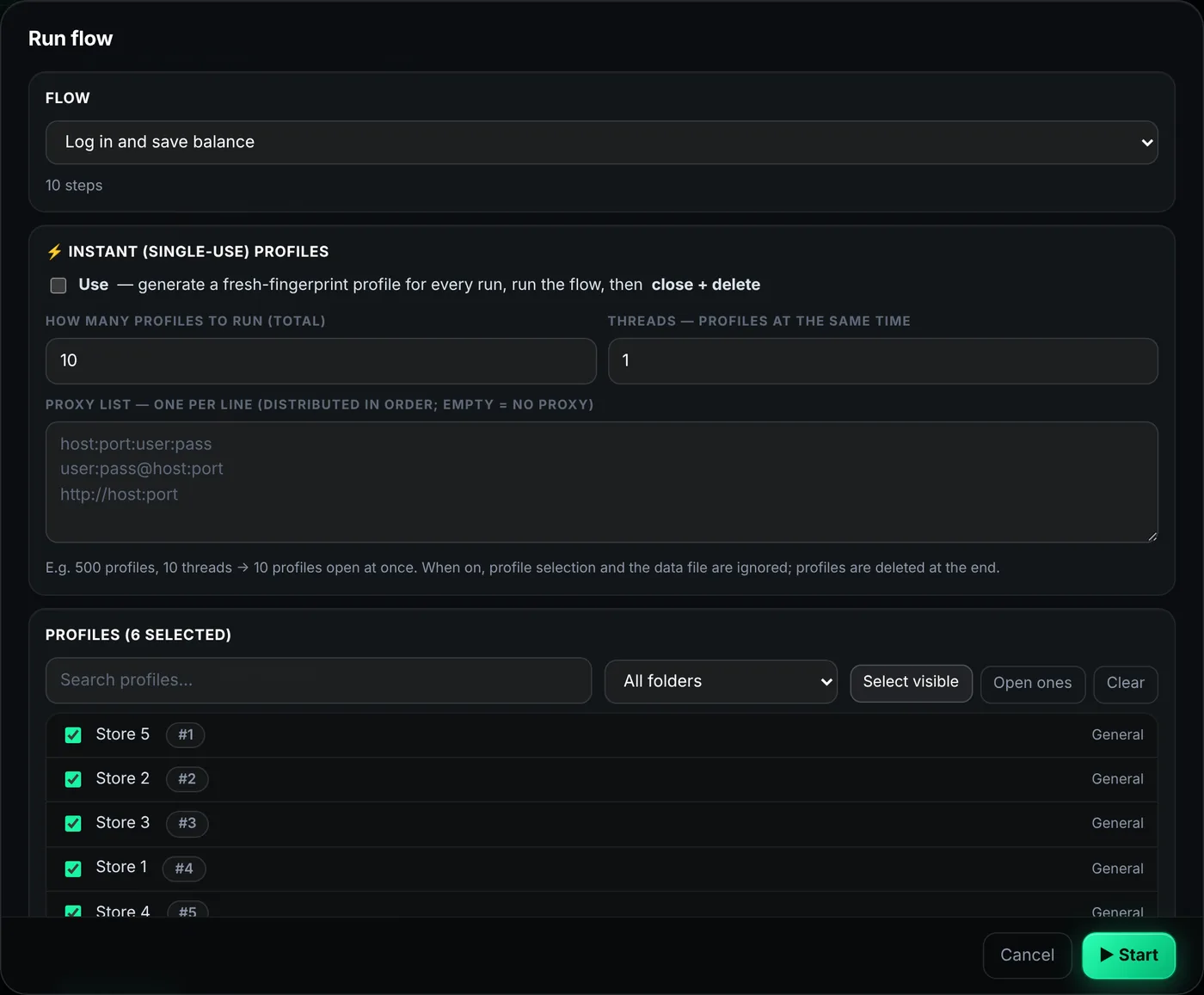
Choose the flow and the profiles. The order you click them in is the order they run in. 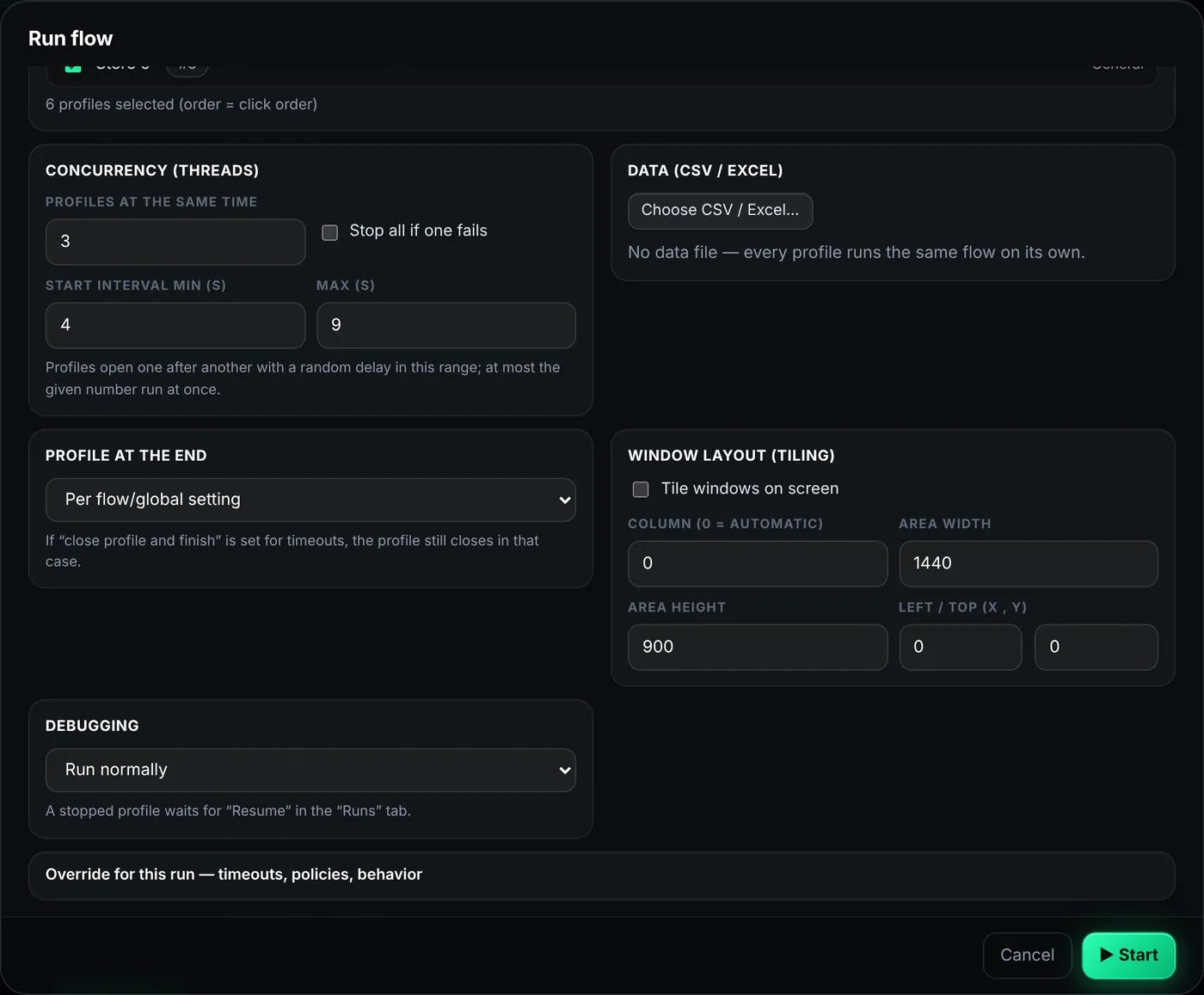
Concurrency, start interval, data file, what happens to the profile at the end, window tiling and debugging. Watch, resume, retry
The Runs tab shows every profile live: status, progress, current step and message. Click a row for its steps, log, data row and results. A paused profile waits for you: deal with what is on the screen and press Resume. When the job ends you can retry the failed ones and export the results as CSV or JSON.
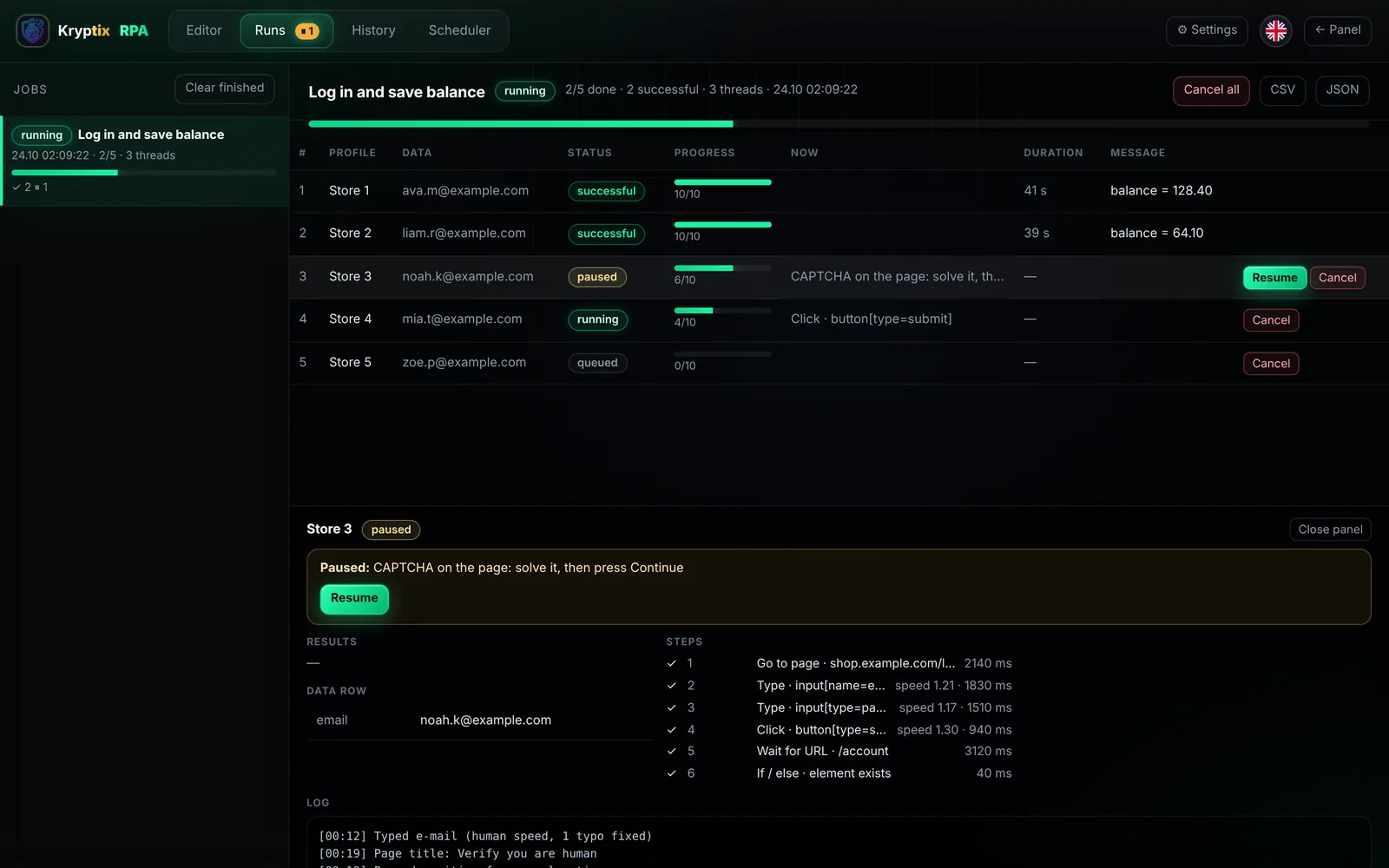
Store 3 reached a CAPTCHA and paused; the other profiles keep going. Example data.
Step reference
Kryptix has 56 step types. Search by name or by what you want to do, or pick a category.
Navigation
Pages, tabs and frames.
Wait for load
Waits until the page has finished loading.
Use it for: After a click that opens a new page.
Tab management
Opens a new tab, switches to a tab, closes one or all others, or waits for a pop-up and switches to it.
Use it for: “Open in new tab” links, payment pop-ups.
Enter / leave iframe
Moves the following steps inside an iframe on the page, and back out again.
Use it for: Embedded payment forms, embedded log-in boxes.
Example · Enter iframe#payment … steps … Leave
Alert / confirm dialog
Answers alert, confirm and prompt dialogs automatically. The dialog is never shown.
Use it for: “Are you sure?” and “Leave this page?” questions.
Screenshot
Saves a picture of the page. A screenshot is also taken automatically when a step fails.
Use it for: Proof of each step; checking the result by eye.
Example · File name step_{{run}}
Wait for download
Waits until a file has downloaded and stores its name and path in a variable.
Use it for: Reports, invoices, “Export” buttons.
Get page info
Stores the current address, the title or the page text in a variable.
Use it for: Checking where a redirect went.
Interaction
Working with elements the way a person does.
Click
Clicks an element along a curved, human-like mouse path; double and right click too. If the element is below the fold or inside a list, it is scrolled into view with real wheel scrolling first.
Use it for: Buttons, links, menu items.
Example · button[type=submit]
Hover
Moves the mouse over an element without clicking.
Use it for: Menus that open on hover, tooltips.
Random click
Picks one of several selectors at random (from those present on the page) and clicks it.
Use it for: Adding natural variation; buttons whose order changes.
Click by text
Clicks the element whose text matches exactly, so “1” never hits “10”. Narrow it down with a container selector or an anchor (the nearest element to a label such as “Day”). With scrolling on, it scrolls the open list itself until the option appears.
Use it for: Drop-downs with random class names, date pickers, long option lists.
Example · Scope [role=option], text 2001
Drag and drop
Drags one element onto another with the mouse. HTML5 drag of images and links is not supported.
Use it for: Sliders, sortable lists.
Type
Types into a field at human speed, with an occasional typo that is fixed with Backspace. The value can be fixed text, a random pick from a list or a number range.
Use it for: Usernames, search boxes, forms.
Example · input[name=email] ← {{email}}
Press key
Sends Enter, Tab, Esc or a shortcut to the page, not to your keyboard.
Use it for: Submitting a search with Enter; moving between fields.
Example · Enter · Ctrl+A
Scroll
Scrolls the page by pixels, or brings an element into view. Scrollable boxes and open lists are scrolled too, not only the page.
Use it for: Lazy-loaded content, reaching the bottom of a page.
Select from dropdown
Chooses an option in a <select> box by visible text, value or position, or at random.
Use it for: Country, city and quantity fields.
Checkbox / radio
Checks, unchecks or toggles a checkbox or radio button.
Use it for: “I accept the terms”, preference options.
Upload file
Gives a file to an upload field. The file dialog never opens.
Use it for: Profile photos, documents.
Waiting
Pausing until the right moment.
Wait (duration)
Waits a fixed time or a random time from a range.
Use it for: Natural pauses between actions.
Example · Random 800–1600 ms
Wait for element
Waits until an element exists, becomes visible or disappears.
Use it for: Waiting for a loading spinner to go away.
Wait for URL
Waits until the address contains, equals or matches a value, or simply changes.
Use it for: Waiting for the dashboard after logging in.
Example · contains /account
Wait for text
Waits until a text appears or disappears on the page or inside one element.
Use it for: Waiting for “Saved” or “Payment successful”.
E-mail verification code
Reads a verification code from an inbox: a saved account, Gmail (IMAP with an app password), Outlook/Hotmail (OAuth) or any IMAP server. It picks the real code, not numbers from the address or the year, and you can force the number of digits. Last N minutes = 0 means no time limit.
Use it for: One-time codes sent by e-mail.
Example · Outlook: {{mail}} / {{token}} → code, 6 digits
Wait for manual action
Pauses the flow with your message. It continues when you press Resume in the Runs tab.
Use it for: CAPTCHAs, a one-off manual step.
Example · “Solve the CAPTCHA, then press Continue”
Data
Reading data from pages and files, variables, text and numbers.
Extract data
Stores an element's text, attribute or value in a variable.
Use it for: Reading a price, a balance, a username.
Example · .account-balance → balance
Extract all matches
Builds a list from every element that matches.
Use it for: Search results, product lists, all links on a page.
Set variable
Gives a variable a value; {{…}} expressions work. Can be kept for the next run.
Use it for: Counters, carrying data between runs.
Example · count = {{count|int}} + 1
Text / number operation
Extracts with regex, replaces, splits, joins, trims, changes case, converts to a number or calculates.
Use it for: Turning “$1,234.50” into 1234.5; pulling a code out of a text.
Generate random data
Generates a name, username, e-mail, phone number, password, date or number.
Use it for: Sign-up forms that need unique values.
Generate 2FA code (TOTP)
Generates the current 6-digit code from an authenticator key on your computer, with no outside service. Accepts a plain key or an otpauth:// link. If the code expires in under 4 seconds it waits for the next one. Your PC clock must be correct.
Use it for: Two-step verification on log-in.
Example · {{totp_key}} → code, then Type {{code}}
Save result
Writes a column to the run's results table, which you can export as CSV or JSON.
Use it for: Collecting one value from every profile.
Example · balance = {{balance}}
Write to log
Adds a line to the run log.
Use it for: Notes for debugging.
Google Sheets
Reads, writes or clears a Google Sheet with a service account added in Settings. Share the sheet with the account's e-mail as Editor.
Use it for: A shared list of accounts or results for a team.
Read from txt into variables
Reads a line from a txt file, splits it by a separator and puts the parts into variables. The line can be the next one (every profile gets a different line), a random one or a fixed number; used lines can be removed.
Use it for: One account per profile from an email:password list.
Example · [email protected]:secret → {{mail}}, {{pass}}
Save to txt
Appends text (variables included) to a txt file, or overwrites it.
Use it for: Lists of finished or failed accounts.
Example · {{mail}} - OK → done.txt
Read from Excel
Reads an Excel (.xlsx) or .csv file you drag in, browse to or give as a full path. The first row is the header and every column becomes a variable of the same name. Takes one row (the next one, so every profile gets a different row; a random one; or a fixed number), all rows as a list, or a single cell such as B2. The row number in the file comes back as {{excelSatirNo}}. Old .xls files are not supported.
Use it for: One account per profile from a sheet with mail and password columns.
Example · Columns mail | password → {{mail}}, {{password}}
Save to Excel
Adds a row of column name + value pairs to an Excel (.xlsx) or .csv file, writes a single cell, or rewrites the file. In an existing file the formatting, other sheets and formulas are kept; a missing file is created with a bold header row. Rows can also come from a list variable. Writes are queued, so many profiles can write to the same file at once. A file that is open in Excel can be read but not written.
Use it for: Collecting results as a table; marking a used row with D{{excelSatirNo}} = USED.
Example · mail = {{mail}}, status = OK → results.xlsx
JSON operation
Takes a field out of JSON text with a path such as data.items[0].name ([-1] is the last item), turns text into an object or list, or turns an object back into JSON text. A missing field can get a default value or fail the step.
Use it for: Reading a token or an ID from a page or a response.
Example · Source {{response}}, path data.token → {{token}}
Pick random from list
Picks one or a few random items from a list variable or from line-by-line text. The same item can be kept from being picked twice, and picked items can be removed from the source list.
Use it for: A random name, city or product; giving each profile a different value from a pool.
Example · List {{cities}}, 1 item → {{city}}
Profile note / tags
Changes the running profile's note (write, append or clear) and tags (add, remove, replace or clear). The change shows in the profile list, and later steps see it in {{profil.not}} and {{profil.etiketler}}.
Use it for: Marking a profile when an account is created; tagging failed profiles to filter them later.
Example · Note Account created: {{mail}}, add tag created
Logic
Conditions, loops, sub-flows and ending a run.
If / else
Runs one lane or the other depending on a condition: a variable comparison, an element that exists or is visible, a text or an address. Conditions can be combined with AND, OR and NOT.
Use it for: “If a CAPTCHA is shown, pause; otherwise continue.”
Loop
Repeats the steps inside it N times, once for every item in a list, while a condition holds, until it holds, or until an element disappears.
Use it for: Opening every link in a list; paging through results.
Run sub-flow
Runs another flow inside this one, with parameters, and can take values back from it.
Use it for: One shared “Log in” flow used everywhere.
Go to label
Jumps to a label in the same block.
Use it for: Retry loops; skipping a part.
Label
A named point that “Go to label” and error policies can jump to.
Use it for: Jump targets.
Break loop
Ends the loop it is in.
Use it for: Stopping once the item is found.
Next iteration
Skips the rest of this loop iteration.
Use it for: Skipping items that do not fit.
Return from sub-flow
Ends the sub-flow (or the flow) at this point.
Use it for: Leaving early when a condition is met.
End flow
Ends the flow as successful, failed or timed out, with a message.
Use it for: “Already logged in” → finish successfully.
Close profile and finish
Closes the profile and ends its RPA run.
Use it for: Closing cleanly when the work is done.
Note
A note inside the flow. It does nothing when the flow runs.
Use it for: Keeping long flows readable.
SMS
Phone verification through an SMS service (smsbower, hero-sms).
Get SMS number
Buys a phone number for a service and country from an SMS provider whose key you added in Settings, and stores the number and the activation ID in variables.
Use it for: Sign-ups that ask for a phone number.
Example · → {{phone}}, {{sms_id}}
Wait for SMS code
Waits for the code sent to that number. If no code arrives in time, it can cancel the activation.
Use it for: Entering the code the site sends.
Example · {{sms_id}} → sms_code
SMS action (cancel / resend / finish)
Cancels the activation, asks for another SMS, or marks it finished.
Use it for: Cleaning up after a successful or failed sign-up.
No step matches the search.
Settings
Open ⚙ Settings in RPA. These apply to all flows; a flow's own settings override them, and a single step can override its flow.
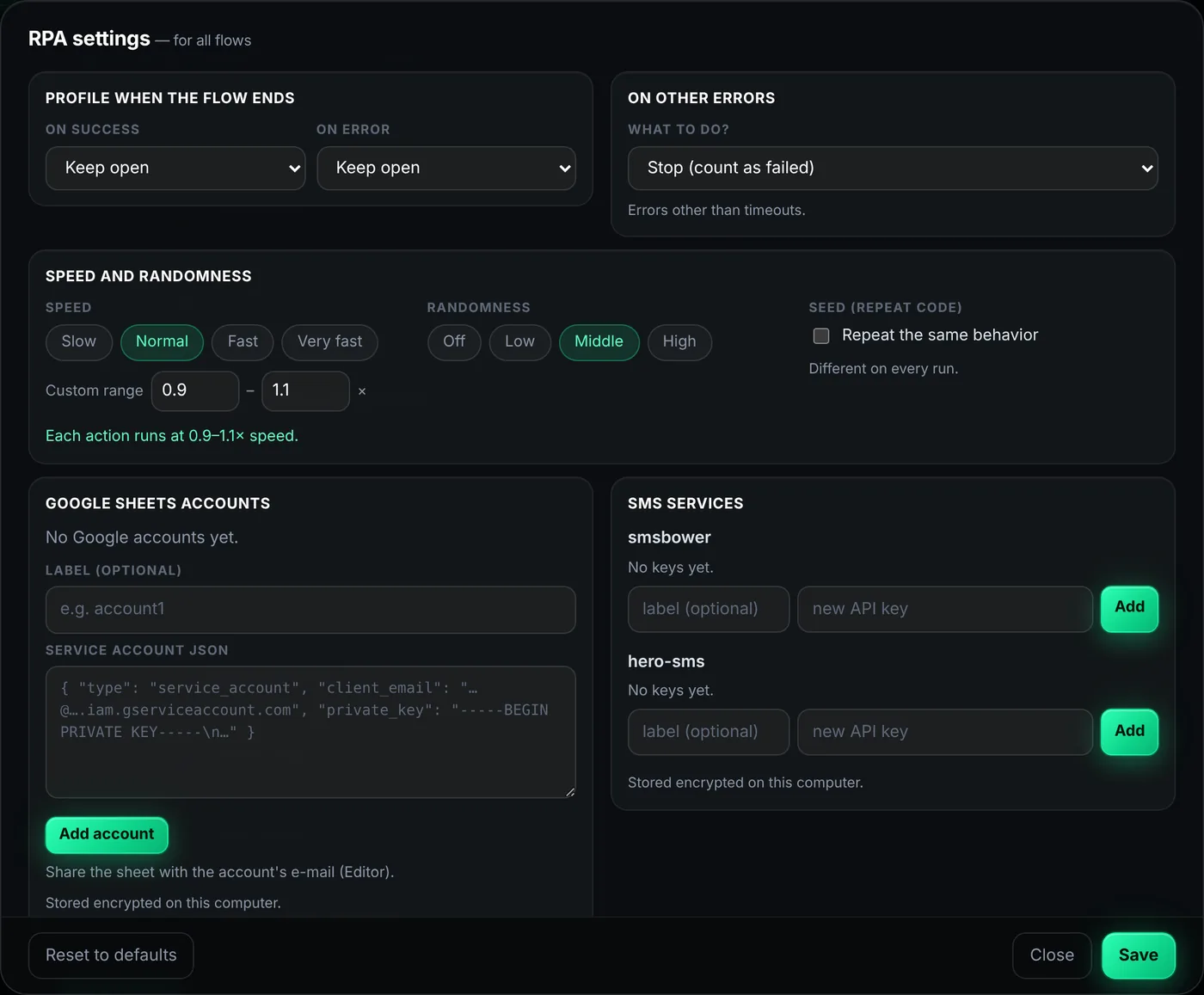
- Speed and randomness
- Slow, normal, fast or very fast, plus how much each action's speed varies. Fast with middle randomness runs every click and keystroke at a slightly different speed. Enter your own range if the presets do not fit.
- Seed (repeat code)
- When on, the same seed reproduces the same behaviour; when off, every run is different.
- Human behaviour
- Typing speed and the chance of a typo that is corrected with Backspace. The mouse always moves along a curve.
- Timeouts and error policies
- One timeout for all steps, and what happens when a step fails or times out: stop, skip, retry, go to a label, or close the profile and finish. A flow's own settings override these, and a step can override its flow.
- Profile when the flow ends
- Keep the profile open or close it, separately for success and failure.
- Screenshot on error
- Saves a picture of the page when a step fails, so you can see later what went wrong.
- Google Sheets accounts and SMS services
- Service accounts for the Google Sheets step and API keys for smsbower and hero-sms. Both are stored encrypted on your computer.
Editor tools
- Pick
- Click an element in the profile's window and its selector is filled in.
- Smart
- Finds the real field or button inside the HTML you picked or pasted and suggests selectors on stable attributes. Each suggestion is checked on the open page; “unique” ones match exactly one element.
- Test and Highlight
- Test shows how many elements match. Highlight outlines the match in the browser for 2.5 seconds without changing the page.
- Fallback selectors
- Give an element several selectors; if the first one fails the next is tried. An element can also be found by its visible text.
- Record
- Watches your clicks, typing and scrolling in the profile and adds them as steps. What you type into password fields is not recorded.
- Step by step and breakpoints
- Run the flow one step at a time, or stop at marked steps (●), then continue from the Runs tab.
- Validate
- Lists likely problems, such as empty selectors or missing labels, before you run.
- Templates, versions, import and export
- Start from a template, go back to an earlier saved version, and move flows between computers as files.
Scheduler and history
- Scheduler
- Runs a flow on the profiles you choose at the times you set, for example every morning. Kryptix must be open at that time.
- History
- Keeps finished runs with their status, logs, results and error screenshots.
Variables
Anywhere in a flow, {{…}} is replaced with a value when the step runs. Values come from:
{{name}} | Your own variables, set by steps such as Extract data or Set variable. |
{{column}} | Columns of the CSV or Excel file attached to the run. |
{{profil.ad}} | The current profile: name, tags, note. |
{{proxy.ulke}} | The profile's proxy: country, IP and similar. |
{{kalici.x}} | Values kept with “persist”, available in the next run too. |
{{rastgele.eposta}} | Random data created on the spot (name, e-mail, phone…). |
{{count|int}} | Filters after a pipe, for example convert to a whole number. |
Troubleshooting
“Element not found” or “element not visible”
Press Test on the step with the profile open on the same page. If nothing matches, the page changed or the element is inside an iframe (add Enter iframe first). If it matches but is not visible, turn on Scroll into view if needed, or add Wait for element before the step.
The selector breaks every time the site updates
Class names like .x7f3a are generated and change. Use Smart to get a selector on name, aria-label or data-testid, or use Click by text for buttons and list options.
A CAPTCHA or “unusual traffic” page appears
The run pauses that profile and shows it in the Runs tab. Solve it in the profile's window and press Resume. If it happens often, slow the flow down, add waits, and check that the profile's proxy is clean.
How do I give every profile its own account?
Attach a CSV or Excel file in the Run window; each profile gets its own row and the columns become {{variables}}. A txt list read with Read from txt into variables works too.
The flow stops on a slow site
Raise the timeout in Settings (one value for all steps) or only on the slow step under Advanced, and set the timeout policy to Retry.
Can I see what the flow is doing?
Yes. Each profile runs in its own window with a cursor that shows where it clicks. Use Tile windows on screen in the Run window to watch several at once.